androidx
Testing
[TOC]
AndroidX contains unit and integration tests that are run automatically when a change is uploaded. It also contains a number of sample applications that are useful for demonstrating how to use features as well as performing manual testing.
Motivation
Jetpack libraries are developed with the intention that they are functionally
stable and production-ready as of the first public alpha01 release, and that
they remain production-ready at tip-of-tree thereafter.
For this reason, we emphasize that continuous integration testing – both pre- and post-submit – is the ultimate source of truth for library correctness. If tests are failing at head, the library is not only at risk of blocking public releases but at risk of breaking production Google apps that rely on its tip-of-tree builds.
API level coverage in CI
Generally, we aim to test Jetpack libraries against (1) the earliest supported API level, (2) the latest stable API level, (3) API levels with major changes, (4) API levels with high concentration of devices in the field, and (5) the next pre-release API level.
In practice, this is limited by device and emulator availability and reliability. As of January 2025, we run tests on the following API levels:
- API level 21: the lowest API level supported by Firebase Test Lab (FTL)
- API level 26: the lowest supported ARM-based emulator FTL runner, which has much greater performance and stability
- API levels 30, 33, 34, 35: the latest supported API levels, which represent the majority of devices in the field
Adding tests
For an example of how to set up simple unit and integration tests in a new
module, see
aosp/1189799.
For an example of how to set up Espresso-powered integration tests, see the
preference library’s
build.gradle
and
EditTextPreferenceTest.java
files.
The currently allowed test runners for on-device tests are
AndroidJUnitRunner
and
Parameterized.
NOTE All package/class/method combinations must be unique. Multiple copies of the same class/method can be included e.g. under different directories, but must be distinguishable by their packages.
NOTE For best practices on writing libraries in a way that makes it easy for end users – and library developers – to write tests, see the Testability guide.
Adding screenshots tests using scuba library
Prerequisites
Golden project: Make sure that you have the golden directory in your root checkout (sibling of frameworks directory). If not re-init your repo to fetch the latest manifest file:
$ repo init -u sso://android/platform/manifest \
    -b androidx-main && repo sync -c -j8
Set up your module: If your module is not using screenshot tests yet, you need to do the initial setup.
-
Modify your gradle file: Add dependency on the diffing library into your gradle file:
androidTestImplementation project(“:test:screenshot:screenshot”)Important step: Add golden asset directory to be linked to your test apk:
android {
    sourceSets.androidTest.assets.srcDirs +=
        // For androidx project (not in ui dir) use "/../../golden/project"
        project.rootDir.absolutePath + "/../../golden/compose/material/material"
}
This will bundle the goldens into your apk so they can be retrieved during the test.
-
Create directory and variable: In the golden directory, create a new directory for your module (the directory that you added to your gradle file, which in case of material was “compose/material/material”).
In your test module, create a variable pointing at your new directory:
const val GOLDEN_MATERIAL = "compose/material/material"
Adding a screenshot test
Here is an example of a minimal screenshot test for compose material.
@LargeTest
@RunWith(JUnit4::class)
@SdkSuppress(minSdkVersion = Build.VERSION_CODES.O)
class CheckboxScreenshotTest {
    @get:Rule val composeTestRule = createComposeRule()
    @get:Rule val screenshotRule = AndroidXScreenshotTestRule(GOLDEN_MATERIAL)

    @Test
    fun checkBoxTest_checked() {
        composeTestRule.setMaterialContent {
            Checkbox(Modifier.wrapContentSize(Alignment.TopStart),
                checked = true,
                onCheckedChange = {}
            )
        }
        find(isToggleable())
            .captureToBitmap()
            .assertAgainstGolden(screenshotRule, "checkbox_checked")
    }
}
NOTE: The string “checkbox_checked” is the unique identifier of your golden in your module. We use that string to name the golden file so avoid special characters. Please avoid any substrings like: golden, image etc. as there is no need - instead just describe what the image contains.
Guidance around diffing
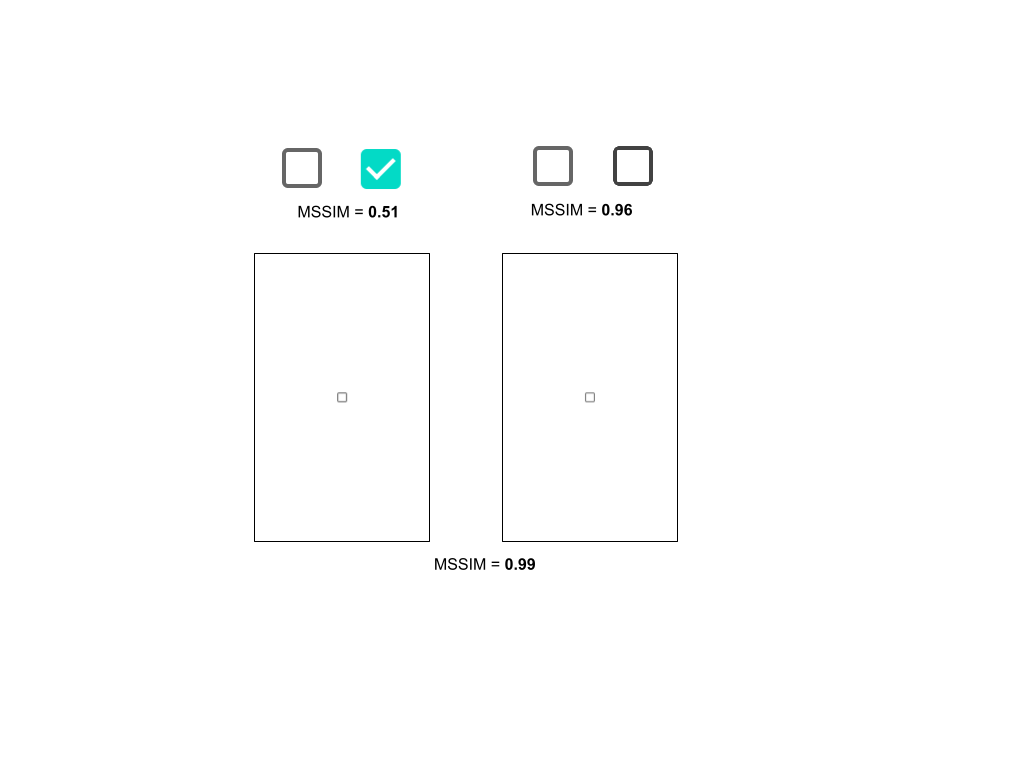
Try to take the smallest screenshot possible. This will reduce interference from other elements.
By default we use a MSSIM comparer. This one is based on similarity. However we have quite a high bar currently which is 0.98 (1 is an exact match). You can provide your own threshold or even opt into a pixel perfect comparer for some reason.
Note: The bigger screenshots you take the more you sacrifice in the precision as you can aggregate larger diffing errors, see the examples below.
Generating your goldens in CI (Gerrit)
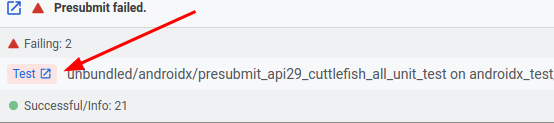
Upload your CL to gerrit and run presubmit. You should see your test fail.
Step 1: Click on the “Test” button below:
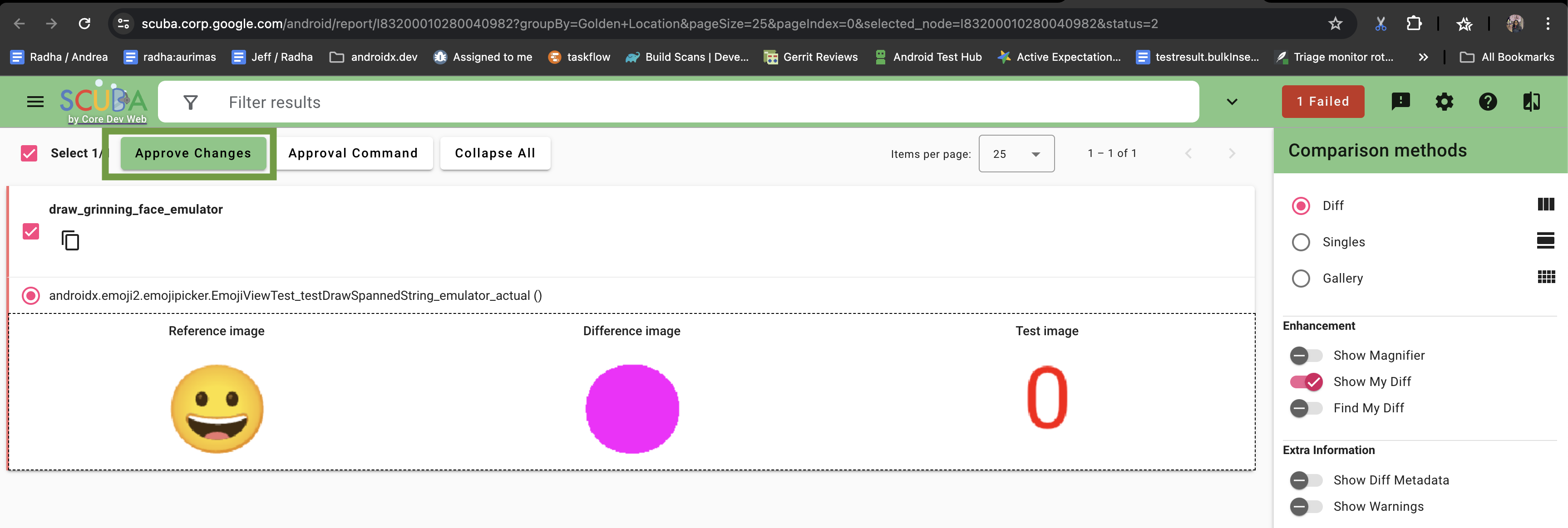
Step 2: Click on the “Update scuba goldens” below:

Step 3: Select the tests for which you want to update the golden images. Confirm the images look correct and click on “Approve Changes”.
Note: If Scuba isn’t loading correctly, you likely need to sign into your Google Account. A sign-in prompt should appear in Chrome. If it doesn’t, try opening Scuba in an incognito window or clear your browser’s cookies and then try loading Scuba again.
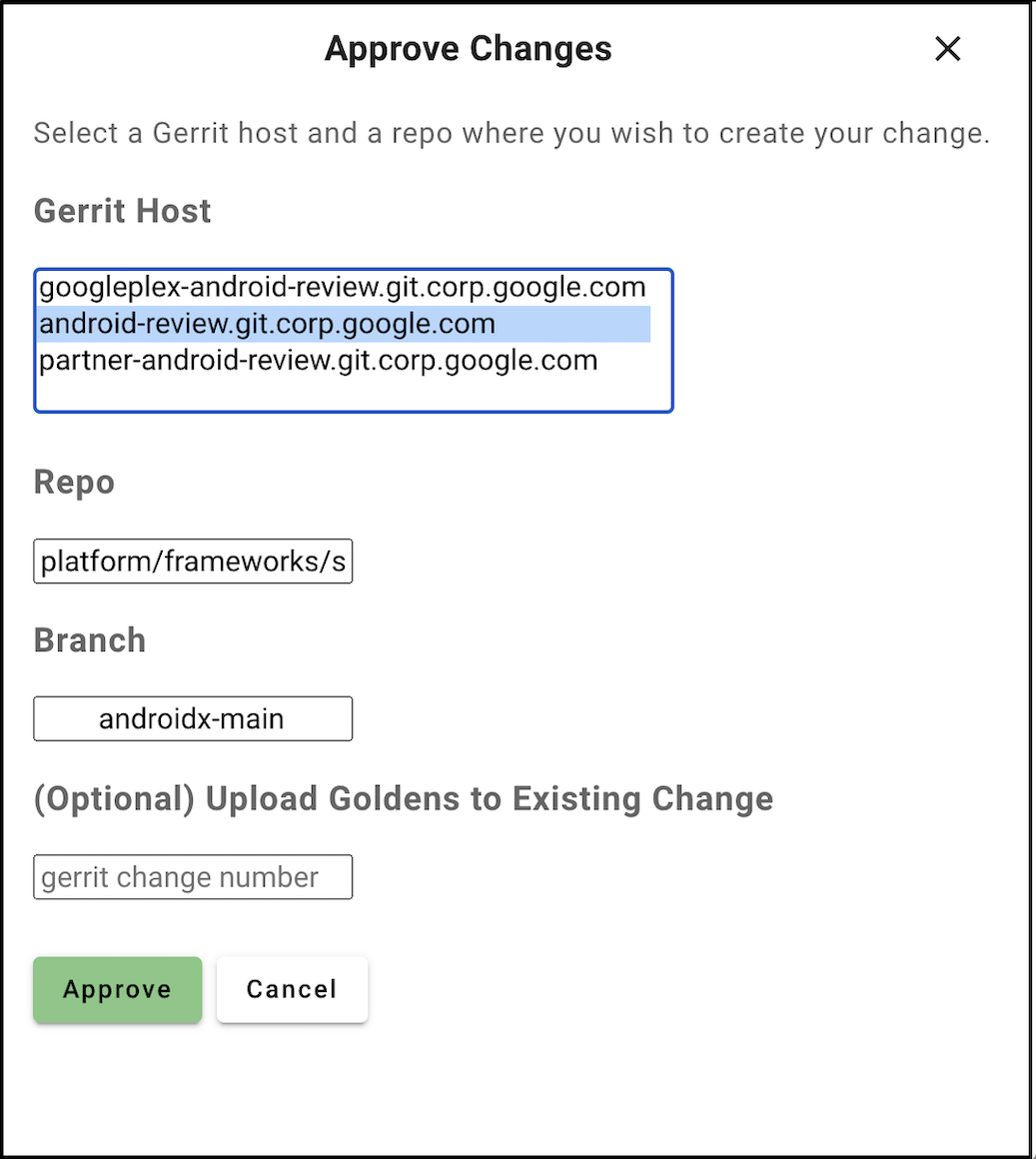
Step 4: In the Approve changes dialog box, enter the following details and click
on Approve:
Select gerrit host as shown in image below
Repo: platform/frameworks/support-golden
Branch: androidx-main
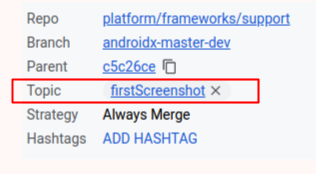
Step 5: Link your original CL with the new goldens CL by setting the same Topic
field in both CLs (any arbitrary string will do). This tells Gerrit to submit
the CLs together, effectively providing a reference from the original CL to the
new goldens. And re-run presubmit. Your tests should now pass!
Running manually / debugging
Screenshot tests can be run locally using medium phone API 35 emulator. Start the emulator using these steps.
Wait until the emulator is running and run the tests as you would on a regular device.
$ ./gradlew <module>:cAT -Pandroid.testInstrumentationRunnerArguments.class=<class>
If the test passes, the results are limited to a .textproto file for each screenshot test. If the test fails, the results will also contain the actual screenshot and, if available, the golden reference image and the diff between the two. Note that this means that if you want to regenerate the golden image, you have to remove the golden image before running the test.
To get the screenshot related results from the device onto your workstation, you can run
$ adb pull /sdcard/Android/data/<test-package>/cache/androidx_screenshots
where test-package is the identifier of you test apk, e.g. androidx.compose.material.test
Locally updating the golden images
After you run a screenshot test and pull the results to a desired location, verify that the actual images are the correct ones and copy them to the golden screenshots directory (the one you use to create the AndroidXScreenshotTestRule with) using this script.
androidx-main/frameworks/support/development/copy_screenshots_to_golden_repo.py \
--input-dir=/tmp/androidx_screenshots/ --output-dir=androidx-main/golden/<test>/
Repeat for all screenshots, then create and upload a CL in the golden repository.
What gets tested, and when
With over 45000 tests executed on every CI run, it is necessary for us to run only a subset of our instrumentation tests in presubmit. We use the AffectedModuleDetector to determine what projects have changed since the last merge. In turn, we only generate apks and test configurations for those changed modules and their dependencies.
When changes are made that can’t be associated with a module, are in the root of
the checkout, or are within buildSrc, then all host tests and all device tests
annotated with @SmallTest or @MediumTest will be run for all modules.
Presubmit tests represent only a subset of the devices on which our tests run. The remaining devices are tested only in postsubmit. In postsubmit, all host and device tests are run for all modules.
Test annotations
Test size and runners
All device tests should be given a size annotation, which is one of:
If a device test is not annotated with its size, it will be run as if it were
@LargeTest by default. Host tests do not need to be annotated with their size,
as all host tests are run regardless of size.
This annotation can occur at either the class level or individual test level.
| Annotation | Max duration |
|---|---|
@SmallTest |
200ms |
@MediumTest |
1000ms |
@LargeTest |
100000ms |
Disabling tests
If you need to stop a host- or device-side test from running entirely, use
JUnit’s @Ignore
annotation. Do not use Android’s @Suppress annotation, which only works with
Android test runners and will not work for host-side tests.
Filtering devices
To restrict a test to a range of SDKs, use
@SdkSuppress
which allows specifying a range with minSdkVersion and maxSdkVersion. This
annotation also supports targeting a specific pre-release SDK with the
codeName parameter.
// Target SDKs 17 through 19, inclusive
@SdkSuppress(minSdkVersion = 17, maxSdkVersion = 19)

// Target pre-release SDK T only
@SdkSuppress(minSdkVersion = Build.VERSION_CODES.TIRAMISU, codeName = "Tiramisu")
You may also gate portions of test implementation code using SDK_INT or
BuildCompat.isAtLeast
methods. s To restrict to only physical devices, use
@RequiresDevice.
NOTE Cuttlefish is not affected by this annotation, only e.g. Studio emulators. If Cuttlefish is displaying behavior that differs from a physical device, they are considering that a bug in Cuttlefish, so please file those bugs instead of only looking for a workaround.
Animations in tests
Animations are disabled for tests by default. This helps avoid flakes due to timing and also makes tests faster.
In rare cases, like testing the animations themselves, you may want to enable
animations for a particular test or test class. For those cases, you can use the
AnimationDurationScaleRule.
Robolectric
Robolectric tests are supported in AndroidX; however, if you targeting a pre-release version of the Android SDK then you may see an error like
java.lang.IllegalArgumentException: Package targetSdkVersion=31 > maxSdkVersion=30
at org.robolectric.plugins.DefaultSdkPicker.configuredSdks(DefaultSdkPicker.java:118)
at org.robolectric.plugins.DefaultSdkPicker.selectSdks(DefaultSdkPicker.java:69)
You can force Robolectric to run using an earlier version of the platform SDK by
creating a <project>/src/test/resources/robolectric.properties file with the
following contents:
# Robolectric currently doesn't support API 31, so we have to explicitly specify 30 as the target
# sdk for now. Remove when no longer necessary.
sdk=30
Using the emulator
You can use the emulator or a real device to run tests. If you wish to use the emulator, you will need to access the AVD Manager (and your downloaded emulator images) using a separate “normal” instance of Android Studio. “Normal” means a non-Canary build of Studio that you would use for regular app development – the important part being that it points to the Android SDK where your downloaded emulator images reside. You will need to open a project to get the Tools menu – do NOT open the AndroidX project in the “normal” instance of Android Studio; instead, open a normal app or create a blank project using the app wizard.
NOTE You can reuse the emulator and system images from a “normal” installation
of Android Studio by linking the emulator and system_images directories to a
standard Android SDK path and restarting Android Studio. This is set up
automatically by studiow on Google-managed devices with a standard Android SDK
path. In other cases, it may be set up manually with something like: cd
prebuilts/fullsdk-darwin ln -s ~/Library/Android/sdk/emulator emulator ln -s
~/Library/Android/sdk/system-images system-images (substituting fullsdk-linux
and your local SDK path as appropriate)
Debugging tests
Using custom platform SDK sources
The platform SDK sources that are checked into the development branch may not match up with the build of Android present on the emulator or your physical device. As a result, the line numbers reported by the debugger may not match up the actual code being run.
If you have a copy of the sources for the build against which you are debugging, you can manually specify your platform SDK source path:
- Click on a module (e.g.
appcompat) in theProjectview - Press
Ctrl-Shift-Aand type “Module Settings”, then run the action - In the
Project Structuredialog, navigate toSDKs > Android API 29 Platform > Sourcepath - Use the
-button to remove any paths that are present, then use the+button to add the desired source path, ex.<android checkout root>/frameworks/baseif you are debugging against a locally-built system image
NOTE The Project Structure dialog reachable via File > Project Structure is
not the same as the Project Structure dialog that will allow you to
specify the SDK source path. You must use the “Module Settings” action as
directed above.
Flaky Tests
If you are seeing flakiness on emulator runners (not Cuttlefish) then it is possible that tests are not cleaning up after themselves, causing misconfiguration between tests in the same module.
Cuttlefish does not run tests with module isolation; it runs multiple test modules on the same instance, so pollution between modules is possible, making it harder to find the cause of the flakiness
Accessing FTL outputs
When we run tests on Firebase Test Lab devices, we transfer the results and logcat output back to Android’s test result infrastructure; however, FTL also captures screen recordings of the entire test run.
To access these videos from the Android Test Investigate page for a failed test run:
- For the failing test, go to
Artifacts tabin the Android Test Investigate page - Disable
Hide empty folders(if enabled) by clicking on it - Under
Run artifacts, click on “i” icon next to the test module to open the Information tab - In the Information tab to the right, click on the link next to the
logsproperty
The full logcat output and screen recording are available from the Devices tab
by clicking on the test device under Device details and using the Logs and
Video tabs, respectively.
Per-test logcat output and videos are available from the Test cases tab.
Running unit and integration tests
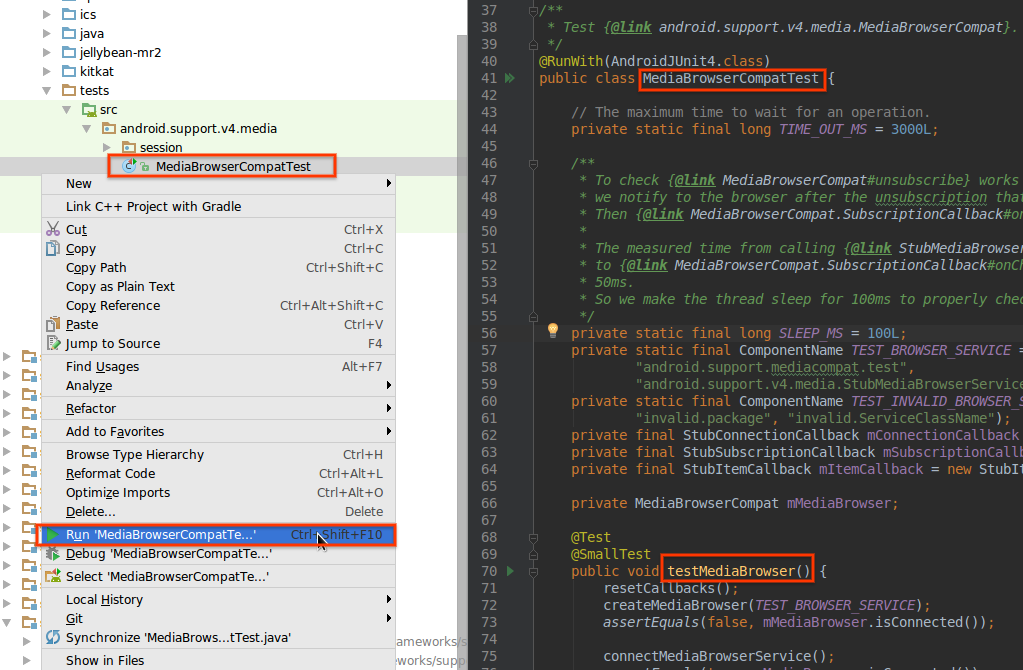
From Android Studio, right-click can be used to run most test targets, including
source files, classes within a file, or individual test methods but not
entire modules. To run a supported test target, right-click on the test target
and then click Run <name of test target>.
To run tests for an entire module such as appcompat, use Run -> Edit
configurations... and use the + button to create a new Android Instrumented
Tests configuration. Specify the module to be tested, give it a reasonable name
(not “All Tests”) and click OK, then use the Run menu to run the
configuration.
NOTE If you receive the error JUnit version 3.8 or later expected this means
that Android Studio generated an Android JUnit configuration when you actually
needed an Android Instrumented Tests configuration. Open the Run -> Edit
configurations... dialog and delete the configuration from Android JUnit, then
manually add a configuration in Android Instrumented Tests.
From the command line
Following a successful build, tests may be run against a particular AndroidX
module using gradlew.
To run all unit or integration tests in a specific project, run the following
from framework/support:
# Run instrumentation tests on a connected device
./gradlew <project-name>:connectedAndroidTest --info

# Run instrumentation tests in Firebase Test Lab (remote)
./gradlew <project-name>:ftlnexus4api21
./gradlew <project-name>:ftlmediumphoneapi26
./gradlew <project-name>:ftlmediumphoneapi30
./gradlew <project-name>:ftlmediumphoneapi33
./gradlew <project-name>:ftlmediumphoneapi34
./gradlew <project-name>:ftlmediumphoneapi35

./gradlew <project-name>:ftlmediumphoneapi28 (For compose tests only)

# Run local unit tests
./gradlew <project-name>:test
substituting the Gradle project name (ex. :core:core).
To run a specific instrumentation test in a given project, run
# Run instrumentation tests on a connected device
./gradlew <project-name>:connectedAndroidTest --info \
    -Pandroid.testInstrumentationRunnerArguments.class=<fully-qualified-class>[\#testName]

# Run instrumentation tests on in Firebase Test Lab (remote)
./gradlew <project-name>:ftlmediumphoneapi30 --className=<fully-qualified-class>
substituting the Gradle project name (ex. viewpager) and fully-qualified class
name (ex. androidx.viewpager.widget.ViewPagerTest) of your test file,
optionally followed by \#testName if you want to execute a single test in that
file
If you want to run a specific unit test, you can do it using
--tests filtering:
# Run a test for an Android library on a connected device
./gradlew <project-name>:test --tests androidx.core.view.DisplayCompatTest

# Run a test for a JVM library
./gradlew <project-name>:testDebugUnitTest --tests
androidx.core.view.DisplayCompatTest
Test apps
Library developers are strongly encouraged to write test apps that exercise their library’s public API surface. Test apps serve multiple purposes:
- Integration testing and validation of API testability, when paired with tests
- Validation of API usability and developer experience, when paired with a use case or critical user journey
- Sample documentation, when embedded into API reference docs using the
@sampleand@Sampledannotations
Legacy test apps
We have a set of legacy sample Android applications in projects suffixed with
-demos. These applications do not have tests and should not be used as test
apps for new APIs, but they may be useful for manual regression testing.
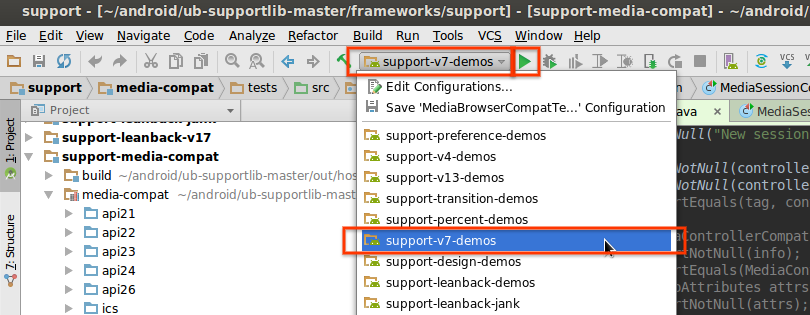
- Click
Run/Debug Configurationon the top of the window. - Select the app you want to run.
- Click ‘Run’ button.
Benchmarking
AndroidX supports benchmarking - locally with Studio/Gradle, and continuously in post-submit. For more information on how to create and run benchmarks, see Benchmarking.